Offline Browsing in Google Chrome
You can re-open the pages of a website or blog that have been previously opened without an internet connection using work offline mode. This is very helpful when your internet connection is limited (not always available), by way of opening pages of the website when the computer / laptop connected to the internet, and then re-open/read when not connected to the Internet.
In the Google Chrome browser to enable offline work mode :
Write (or copy & paste) the following code to the address bar
chrome://flags/#enable-offline-mode
then press Enter.
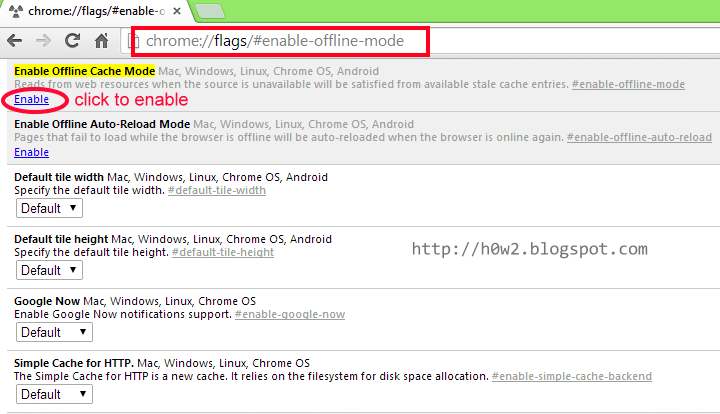
Click Enable to enable work offline mode.
To see the result :
Connect to Internet and try to open one page of a website, after the page is fully open and then close the browser, disconnect the internet connection, then re-open the page without Internet connection, then the page will open.
You can re-open the pages of a website or blog that have been previously opened without an internet connection using work offline mode. This is very helpful when your internet connection is limited (not always available), by way of opening pages of the website when the computer / laptop connected to the internet, and then re-open/read when not connected to the Internet.
In the Google Chrome browser to enable offline work mode :
Write (or copy & paste) the following code to the address bar
chrome://flags/#enable-offline-mode
then press Enter.
Click Enable to enable work offline mode.
To see the result :
Connect to Internet and try to open one page of a website, after the page is fully open and then close the browser, disconnect the internet connection, then re-open the page without Internet connection, then the page will open.